Product Management
Add, edit, and organize your product catalog with powerful management tools.
Products List
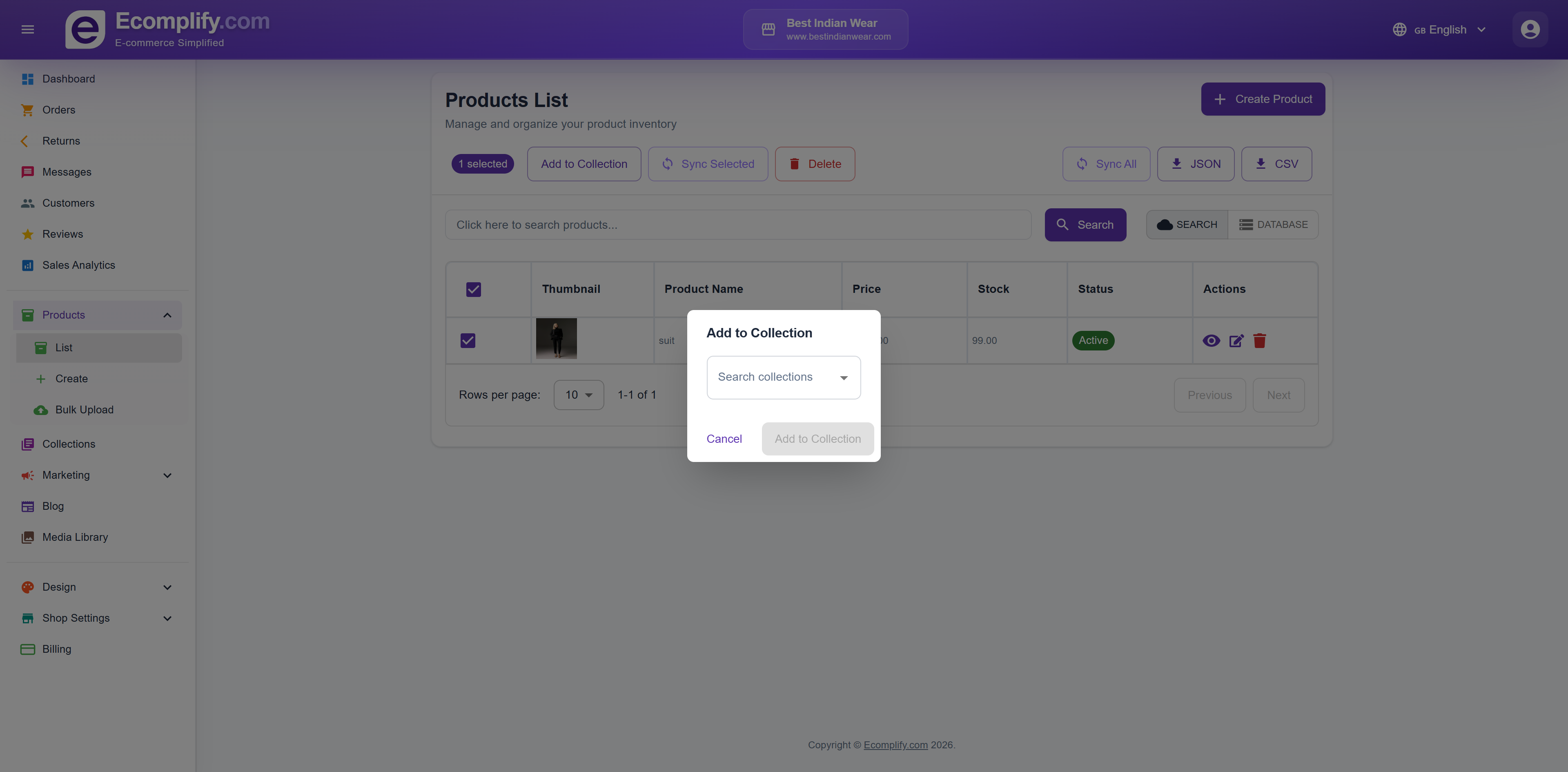
The Products List page is your central hub for managing all products.
Features
- Search - Find products by name, SKU, or tags with instant search
- Search Modes - Toggle between Search (OpenSearch) and Database modes
- Bulk Actions - Add to Collection, Sync Selected, or Delete multiple products
- Export - Export product data as JSON or CSV
- Sync All - Synchronize all products with the search index
Searching the List
The search box finds products even when you don't type the name exactly:
- Matches against product name, SKU, tags, key features, description, and SEO keywords
- Tolerates small typos — searching "tshrt" still finds your t-shirts
- Best matches appear first: products whose name starts with or exactly matches your search are ranked at the top, ahead of looser matches
Deleting Products in Bulk
To delete several products at once:
- Tick the checkbox next to each product you want to remove
- Click Delete Selected
- Confirm the deletion in the dialog
The deletion runs in the background, so you don't have to wait — you'll see a message like "Deleting 12 product(s) in the background" and the products disappear from the list right away. Behind the scenes the cleanup (including removing them from search) finishes within a minute or so, and the list refreshes itself automatically.
You can delete up to 100 products at a time. For more than that, simply repeat in batches.
Product Table
Each product displays:
- Thumbnail image
- Product name
- Price
- Stock quantity
- Status (Active/Draft)
- Action buttons (View, Edit, Delete)
Creating a Product
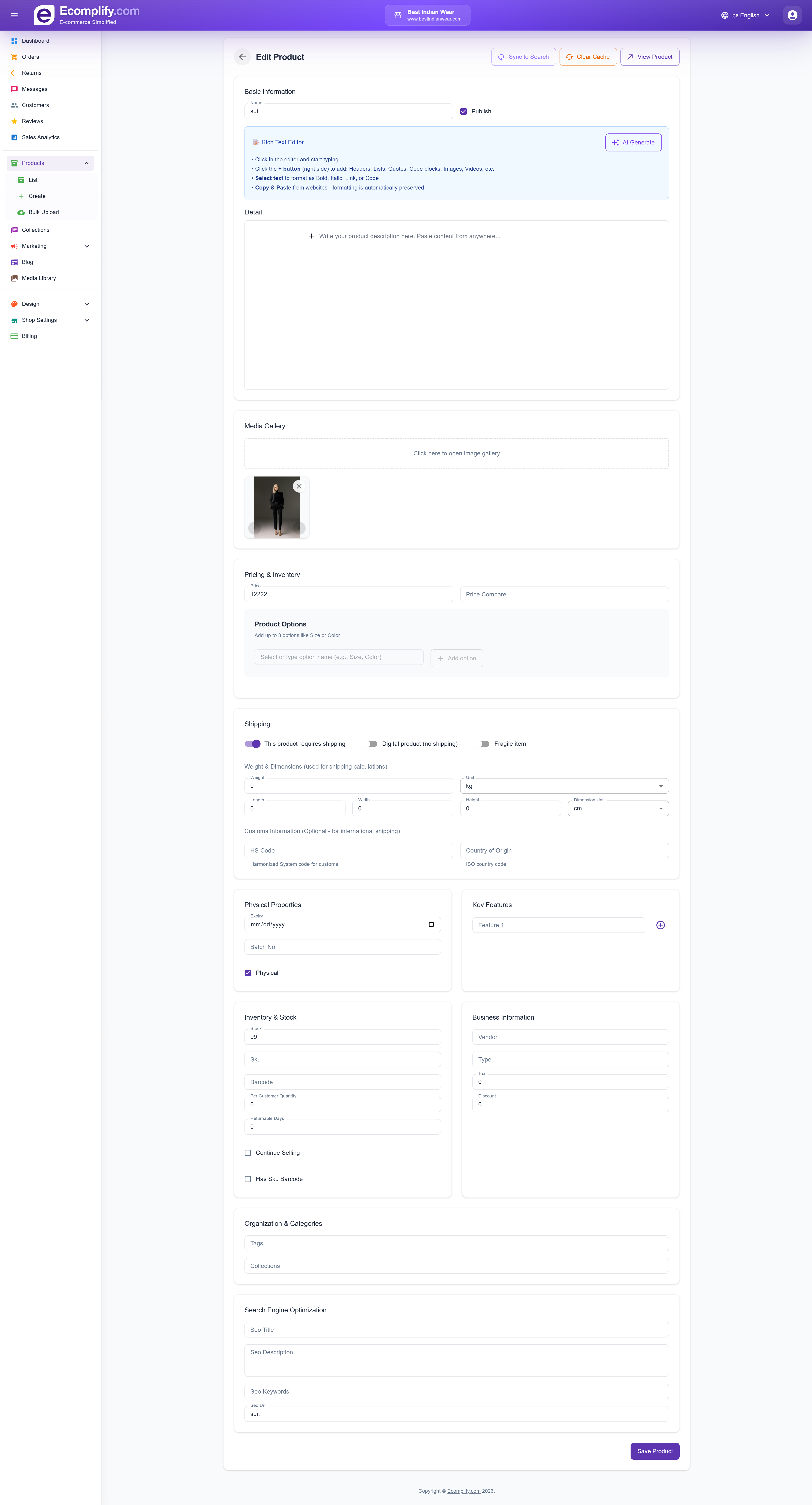
Click Create Product to add a new product to your catalog.
Basic Information
- Product Name - The display name for your product
- Status - Set as Active (published) or Draft
- Rich Text Editor - Write detailed product descriptions with formatting, headings, lists, quotes, code blocks, images, videos, and more
Media Gallery
Upload product images by clicking on the gallery area. Supports:
- Multiple images per product
- Drag-and-drop upload
- Image reordering
Pricing & Inventory
- Price - Set the selling price
- Price Compare - Original price for showing discounts
Product Options
Add up to 3 option types (e.g., Size, Color, Material):
- Define option names and values
- System auto-generates variant combinations
Shipping
Configure shipping properties:
- Shipping type - Physical product, Digital product, or Fragile item
- Weight & Dimensions - Used for shipping rate calculation
- HS Code - Harmonized System code for international shipping
- Country of Origin - For customs declarations
Physical Properties
- Unit - Weight unit (kg, lb, etc.)
- Search Tag - Tags for search optimization
- Category - Physical or Digital
Key Features
Add key feature bullet points that appear on the product page.
Inventory & Stock
- SKU - Stock Keeping Unit identifier
- Barcode - Product barcode
- Per Customer Quantity - Purchase limit per customer per order
- Low Stock Threshold - Stock level at which this product appears in your low-stock alert email (see below)
- Returnable Days - How long after delivery the product can be returned
- Continue Selling - Allow purchases when out of stock
Low Stock Threshold
Every product has its own low-stock alert level, found in the Inventory & Stock section of the product editor:
- Open the product for editing
- In Inventory & Stock, set Low Stock Threshold to the level that counts as "running low" for this product
- Save the product
When a product's stock falls to this level or below, it appears in the low-stock section of your daily summary email (sent at 9 AM your shop's local time), so you know it's time to restock.
A few things to know:
- New products start with a threshold of 5
- Set a higher number for fast movers — for a product that sells dozens a day, 50 can already be "low"
- Set it to 0 to only be alerted once the product is completely sold out
- If you leave the field blank, it falls back to the default of 5
- The low-stock alert can be turned on or off in your email settings, alongside your other notification emails
Business Information
- Vendor - Supplier/vendor name
- Brand - Product brand
- Type - Product type classification
Organization & Categories
- Tags - Categorization tags
- Collections - Assign to product collections
Search Engine Optimization
- SEO Title - Custom page title for search engines
- SEO Description - Meta description
- SEO Keywords - Target keywords
- SEO URL - Custom URL slug
Writing with AI
The product editor has an AI button that drafts content for you:
- A product description from a short prompt and the details you've already entered
- SEO meta title and description
- Tags and suggested collections
- A tidy SEO URL based on the product name
Generated text appears for you to accept, edit or regenerate — nothing is saved until you accept it.
AI drafts are a starting point, not finished copy. Check materials, sizes, compatibility and any claim a customer could hold you to — these are exactly the details AI gets confidently wrong, and they turn into returns.
Search and AI enrichment
Your products are automatically enriched for search when you create or update them — this powers smarter matching for shoppers who search in their own words rather than exact product names.
There's nothing to configure and no switch to turn on. It happens in the background shortly after you save, so a brand-new product may take a moment to become searchable.
Bulk Upload
Import multiple products at once using CSV files.
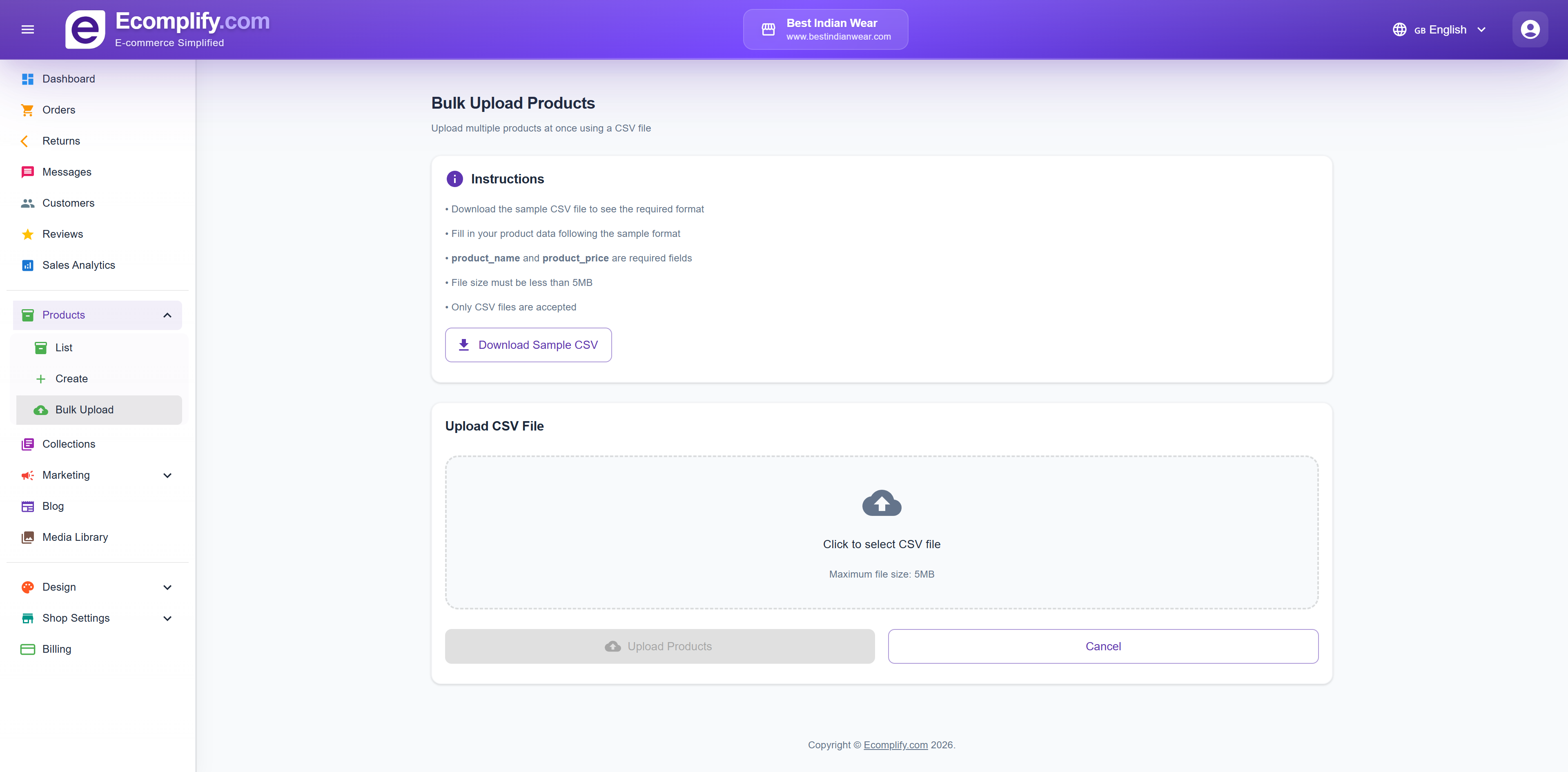
The bulk upload feature allows you to:
- Download a CSV template
- Fill in product data in spreadsheet format
- Upload the CSV file
- Track import progress
- View and resolve any import errors